¶ Agent Resource Guide
¶ Agent Resource Guide
This guide is designed to help all users—new Agents, Existing Agents, and Administrators—quickly understand their roles, set up their accounts, and utilize every available tool for efficient ACA enrollment using the JET Insure platform.
¶ 1. New User Training (Setup & First Steps)
This section guides agents and brokers through setting up their personal accounts for the first time, ensuring compliance and platform access.
¶ 1.1. Account Creation and Activation
Create Account: Visit the registration page, select your account type, enter your professional email, and complete your profile setup.
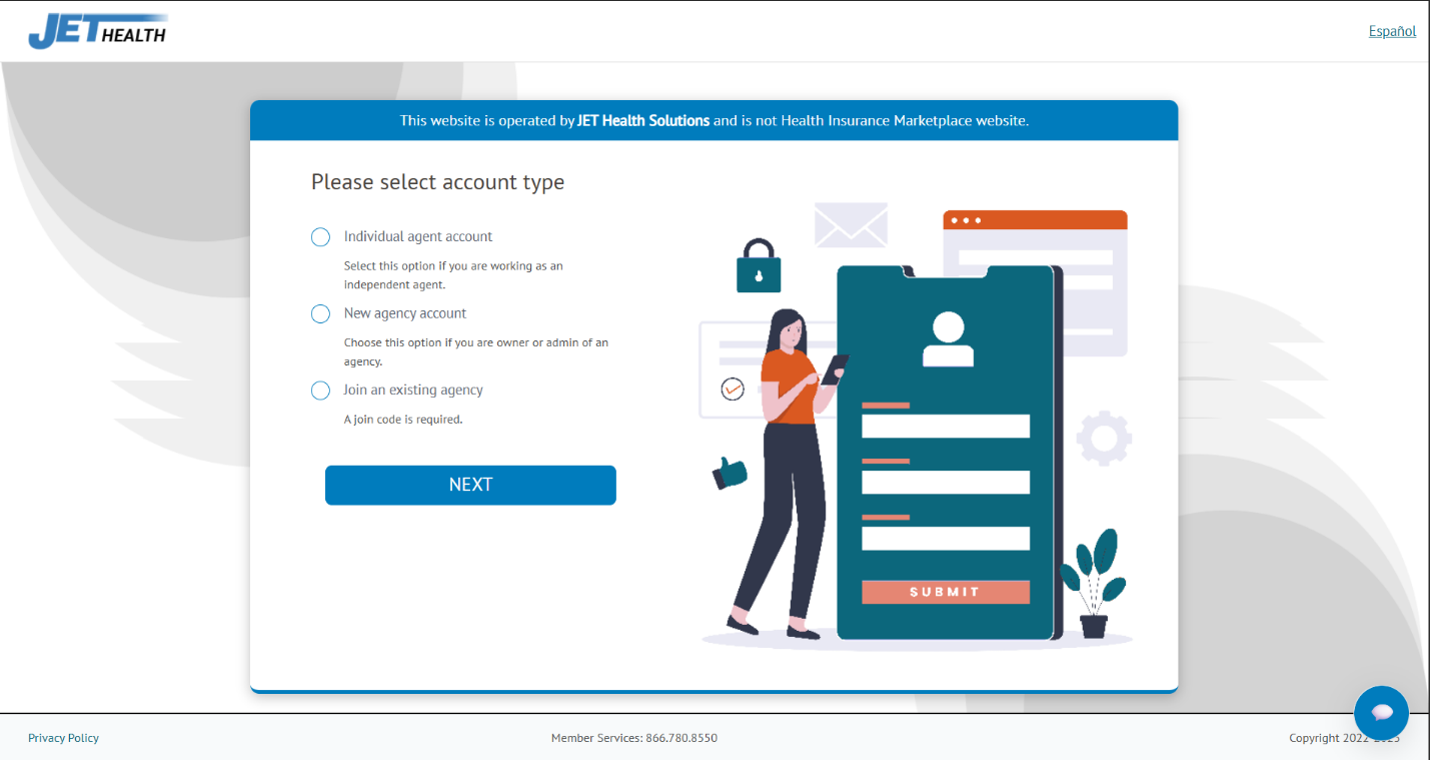
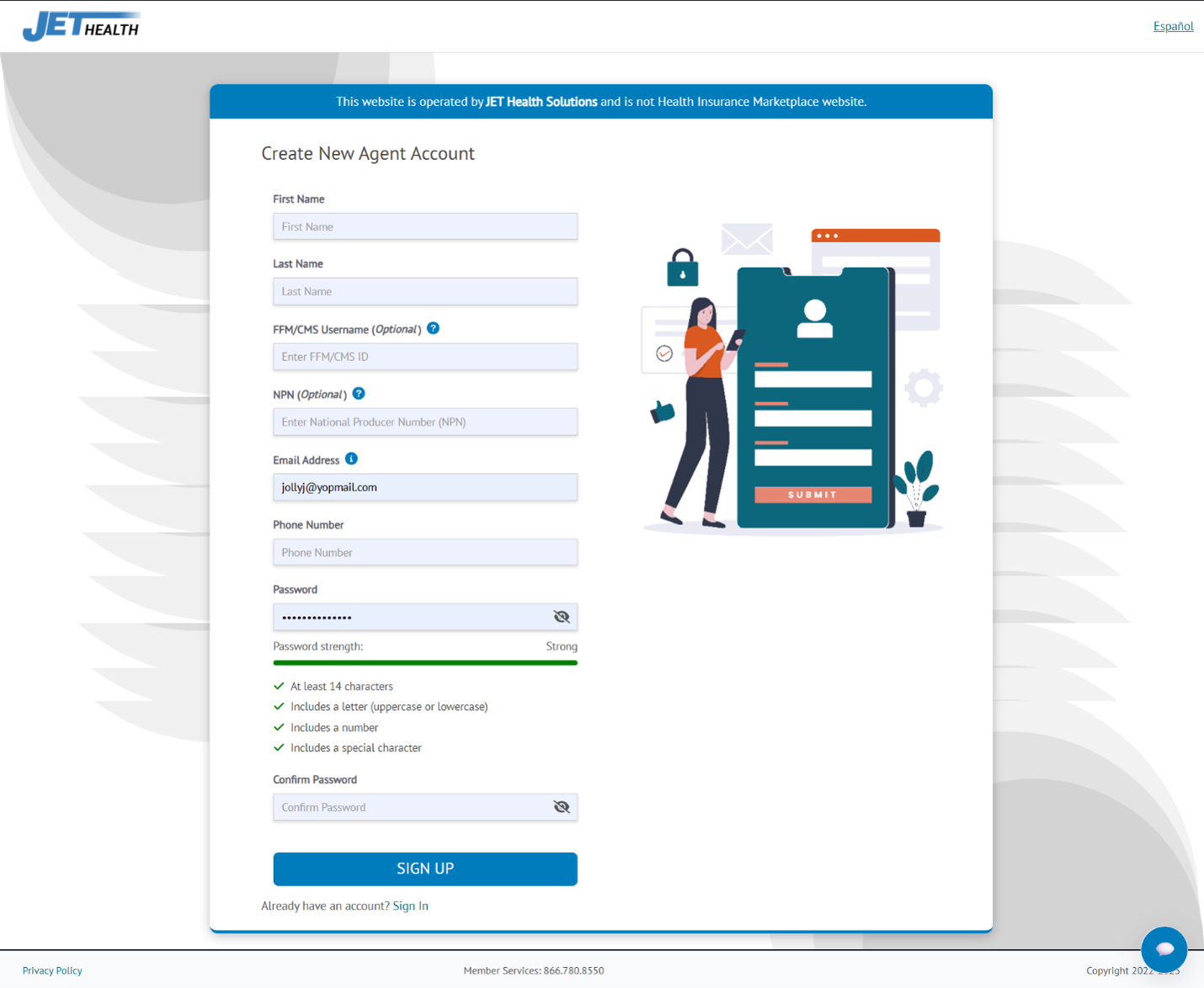
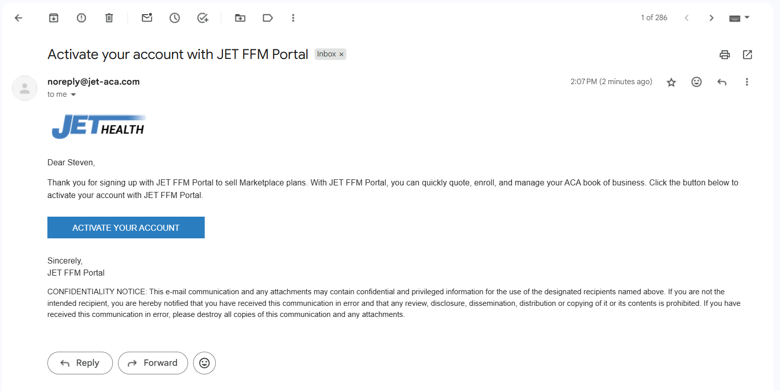
Activate Account: Check your email for this email with subject line "Activate your account with JET FFM Portal" in your Inbox or Spam folder.
¶ 1.2. Password Reset Guide
If you've forgotten your password or need to change it, this guide will walk you through the password reset process.
¶ Step 1: Initiate Password Reset
Navigate to the login page and click on the "Forgot password" link.
¶ Step 2: Enter Your Email Address
Enter the email address associated with your account.
¶ Step 3: Check Your Email
A password reset link will be sent to your email. Check your inbox and spam folder.
¶ Step 4: Access the Reset Link
Open the email and click the "Reset Password" button.
¶ Step 5: Create Your New Password
Enter your new password. Each requirement will be checked off with a green tick mark when satisfied. Once all requirements are met, you'll be redirected to the login page.
¶ Step 6: Password Reset Confirmation
You'll see a confirmation message: "Your password has been reset. Please use your new password to log in." Click "SIGN IN" to access your account.
¶ 1.3. Multifactor Authentication Setup Guide
Multifactor Authentication (MFA) adds an extra layer of security to your admin account by requiring a second form of verification beyond your password.
¶ Step 1: Access Two-Factor Authentication Settings
Log into your admin account and navigate to Settings.
Scroll down to the Two-Factor Authentication section and click "ENABLE TWO-FACTOR AUTHENTICATION".
¶ Step 2: Enable Two-Factor Authentication
Toggle on two-factor authentication. You'll see an option to "REQUIRE TWO-FACTOR AUTHENTICATION FOR AGENTS" to enforce MFA across all agent accounts.
After clicking Update, the "Two-Factor Authentication" function will appear with three authentication method options.
¶ Step 3: Set Up Email Authentication
Click Set Up next to the email authentication option and then click "SEND CODE".
A verification code will be sent to your email address. Enter the verification code and your current account password.
After clicking "ENABLE", the "Email Messages" option will show an "EDIT" button, indicating email authentication is active.
¶ Step 5: Save Recovery Codes
"Recovery Codes" will appear on your settings page. Save these codes in a secure location as they allow account access if you lose your primary authentication method. You have successfully enabled multifactor authentication for your admin account.
¶ 1.3. ENABLE EDE
To enable a seamless connection with HealthCare.gov and unlock all application features, you must complete the Enhanced Direct Enrollment (EDE) activation:
Start EDE: Click the "Enable EDE" button located on your dashboard. Your EDE will be enabled after the following steps have been completed.
NPN Entry: Enter a valid National Producer Number (NPN).
Link CMS Account: Follow the prompts to link your JET account with your CMS account. This is a crucial compliance step that must be renewed every 12 hours to continue accessing the Marketplace for applications.
Verify Identity: Complete the required identity verification process.
¶ 1.4. Mandatory Onboarding Wizard (EDE & Carrier Management)
Upon first login, the Onboarding Wizard will launch. This multi-step process is mandatory for completing CMS compliance and business setup.
Wizard Step
Action Required
Compliance/Purpose
Step 1: Credentials
Enter and verify your NPN and FFM credentials (username/ID).
Verifies licensure and enables the FFM link.
Step 2: CMS Link
Log into the CMS Okta Identity Management portal to formally link your JET account with your CMS account.
Establishes the required EDE connection. (Must be renewed every 12 hours).
Step 3: ID Verification
Complete the required identity verification process online.
CMS compliance requirement to confirm identity.
Step 4: Carrier Management
Update your licensed states and select all appointed carriers from the available list.
Ensures system can apply your NPN correctly and allows final enrollment.
Step 5: Confirmation
Review all details and click Finish to save the configuration.
Account is now fully compliant and ready!
¶ 1.5. First Enrollment: Quoting and Shopping
Once setup is complete, click the "Quote" button on the dashboard to start:
Enter the consumer’s demographics. The system provides instant subsidy calculations.
Your browser does not support the video tag.
Utilize the Provider/Prescription search and Plan comparison options to help the client compare plans.
Your browser does not support the video tag.
¶ 2. Existing User Training (Workflow & Advanced Tools)
This section focuses on client management, post-enrollment features, and leveraging marketing tools.
¶ 2.1. Application and Client Management
The platform provides centralized control for your book of business:
Application Control: Create and edit applications directly within the platform.
Tracking: Use the status filtering tools to manage your workload.
DMI Tracking: Monitor and manage applications with DMI (Data Matching Issues).
Book of Business: Import your existing book of business for easy management.
¶ 2.2. Post-Enrollment Services
Use the platform's EDE capabilities to seamlessly manage applications after enrollment:
Payments: Process binder payments.
Documentation: Upload necessary follow-up documents.
Updates: Report Life Change updates.
Access: View and download 1095-A forms for your clients.
¶ 2.3. Renewals and Marketing (Branded Consumer Website)
Renewals: Utilize the streamlined workflow with auto-pre-filled applications for quick client renewals.
Branded Consumer Website: Set up a custom self-enrollment portal:
Go to Consumer Websites under Settings.
Customize your website and use the resulting URL for marketing campaigns.
Clients who enroll via this link will automatically have your NPN applied.
¶ 3. Admin User Training (Agency Oversight & Control)
This section highlights tools specific to agency administrators managing downline agents and the overall agency presence.
¶ 3.1. Agency Management and Oversight
NPN/Carrier Oversight: Ensure all agents under your agency have correctly entered their NPNs and updated their carrier appointments in their individual settings.
Book of Business Import: Oversee the bulk import of the agency’s entire book of business through the Application Management section.
DMI Tracking: Monitor DMI statuses across all applications submitted by the agency.
¶ 3.2. Compliance: Ensuring Agent EDE Activation
As an administrator, ensuring all agents are fully EDE compliant is critical to agency functionality:
Verification: Confirm that every agent has completed the four-step EDE process (NPN, CMS linking, Identity Verification).
Reminder: Agents who have not linked their CMS account will be unable to search the Marketplace or submit applications.*
¶ 3.3. Branded Consumer Website Customization
Control the agency's direct-to-consumer branding:
Customize the agency's branded website in the Consumer Websites settings.
NPN Logic: Ensure that the NPN application logic on direct-to-consumer enrollments correctly reflects the agency's internal structure and any NPN Override rules that may be in place.